How to Complete Your Driver Profile and Upload Documents
Last updated 13 days ago
How to Complete Your Driver Profile and Upload Documents
Before you can go active on Omni, you need to complete your profile and submit all required documents for review. Everything is done inside the driver app in four steps, all accessed from the same place: your Profile.
Step 1 — Open your Profile
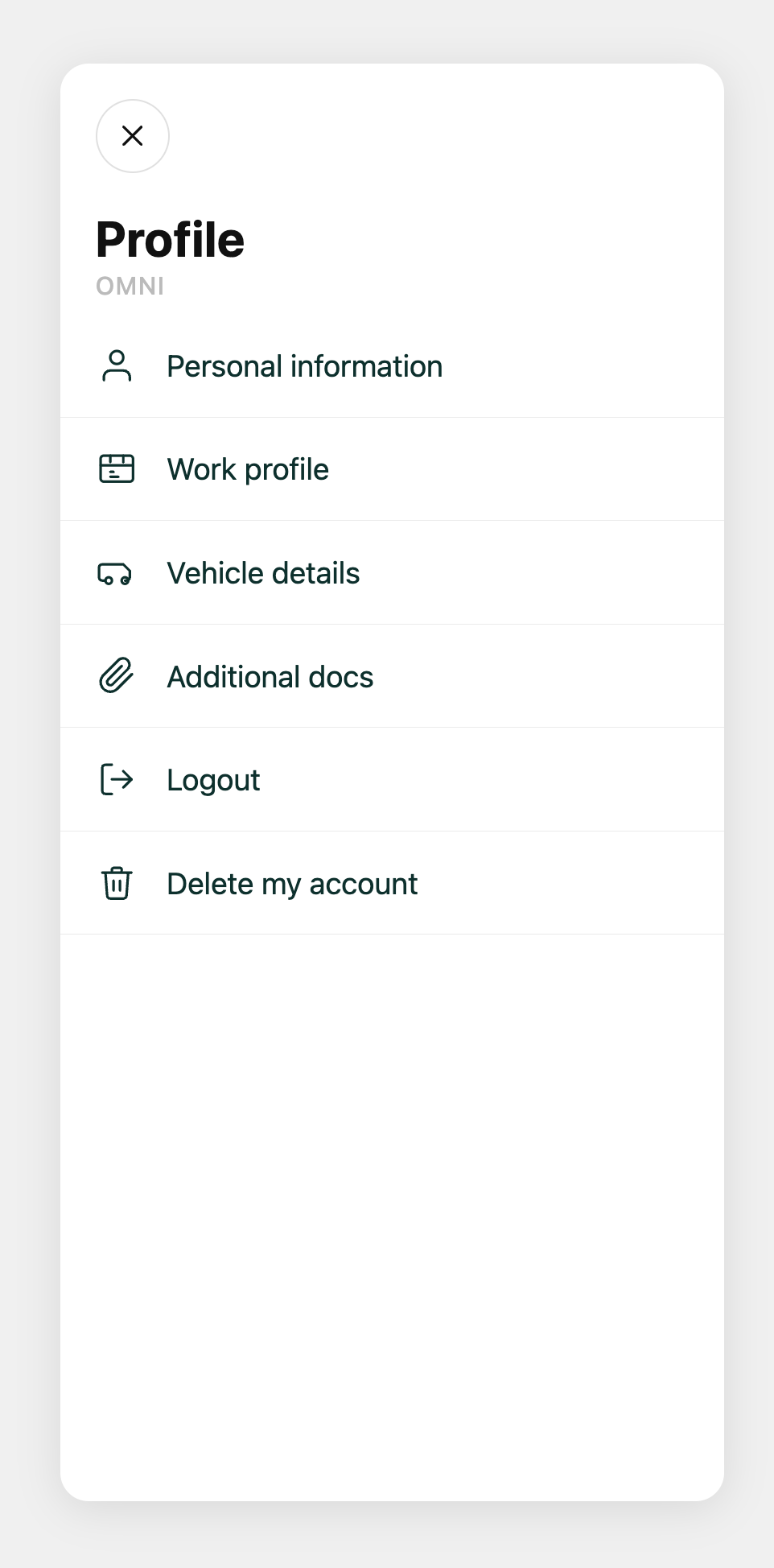
Tap the Profile icon in the navigation bar at the bottom of the app. You will see four sections to complete: Personal information, Work profile, Vehicle details, and Additional docs.
Complete them in order — each section builds on the last.
Step 2 — Personal information
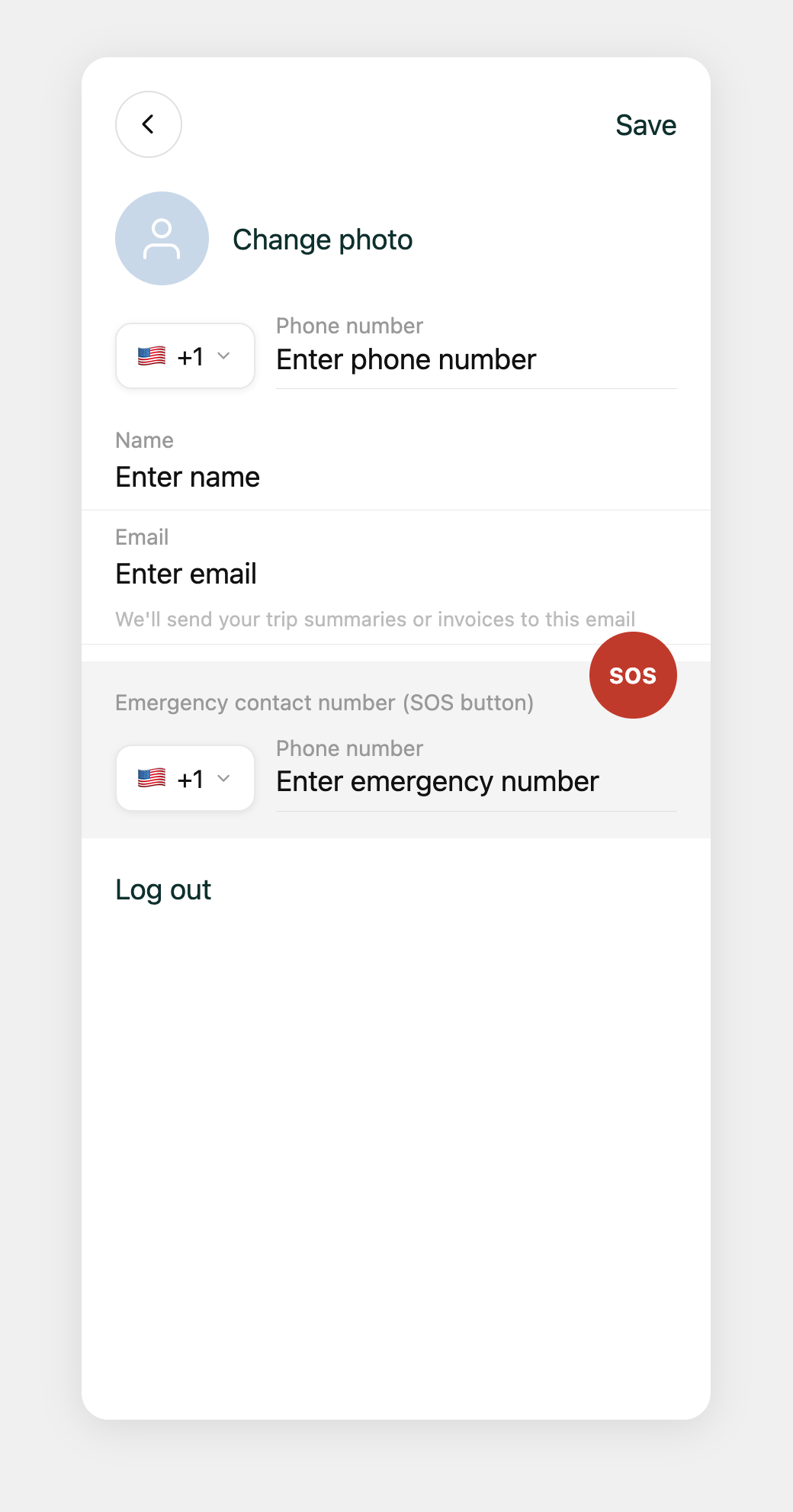
Tap Personal information. Here you will add:
Your profile photo
Your phone number
Your name
Your email address — this is where Omni will send your trip summaries and earnings statements
An emergency contact number for the in-app SOS button
Tap Save when done.
Step 3 — Work profile
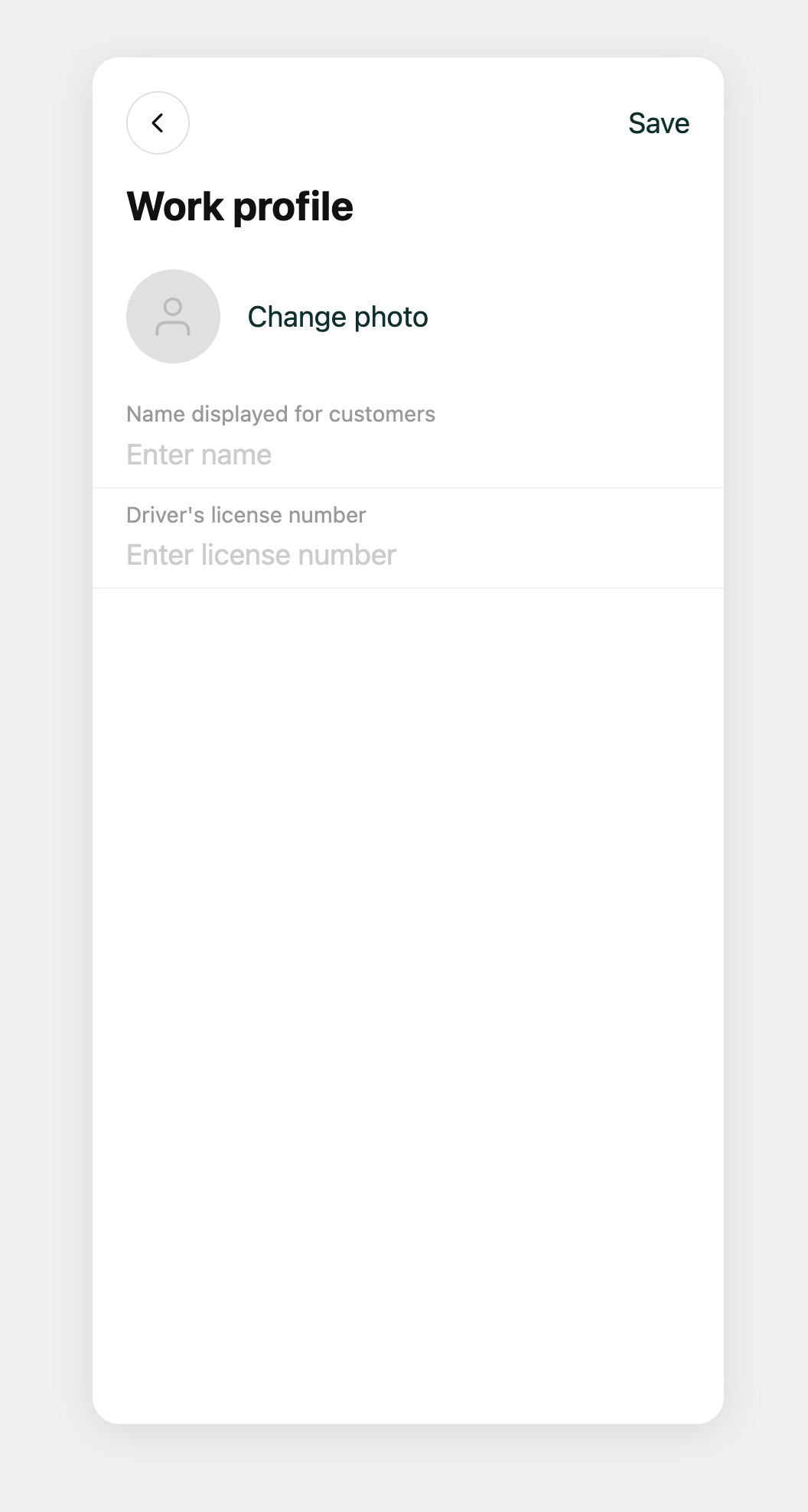
Tap Work profile. Here you will add:
Your work photo — this is the photo riders will see when you are matched to their trip
Your display name — the name shown to customers
Your driver's license number
Tap Save when done.
Step 4 — Vehicle details
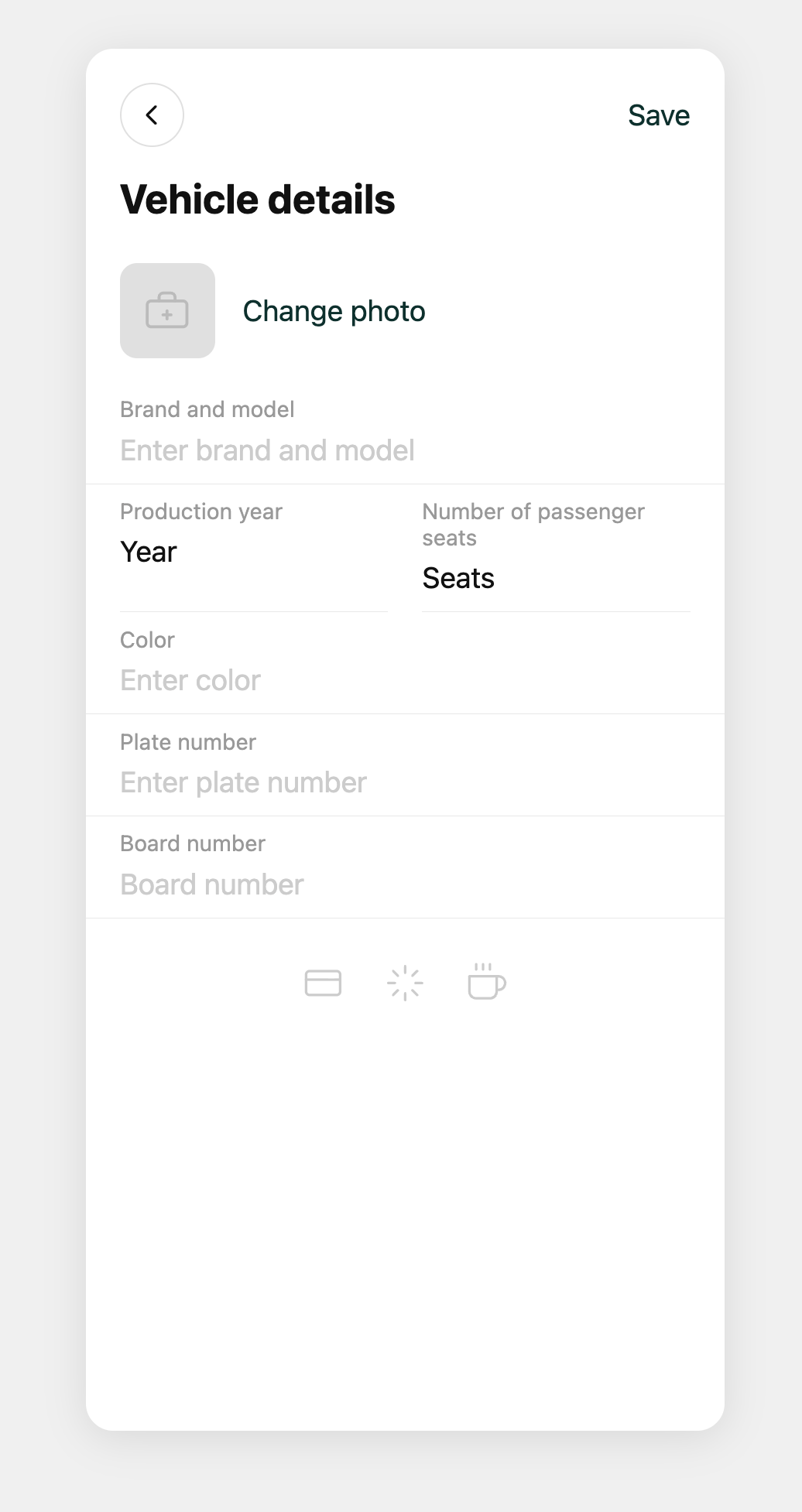
Tap Vehicle details. Here you will add your vehicle information:
A photo of your vehicle
Brand and model
Production year
Number of passenger seats
Color
License plate number
Board number (if applicable)
Tap Save when done.
Step 5 — Additional docs
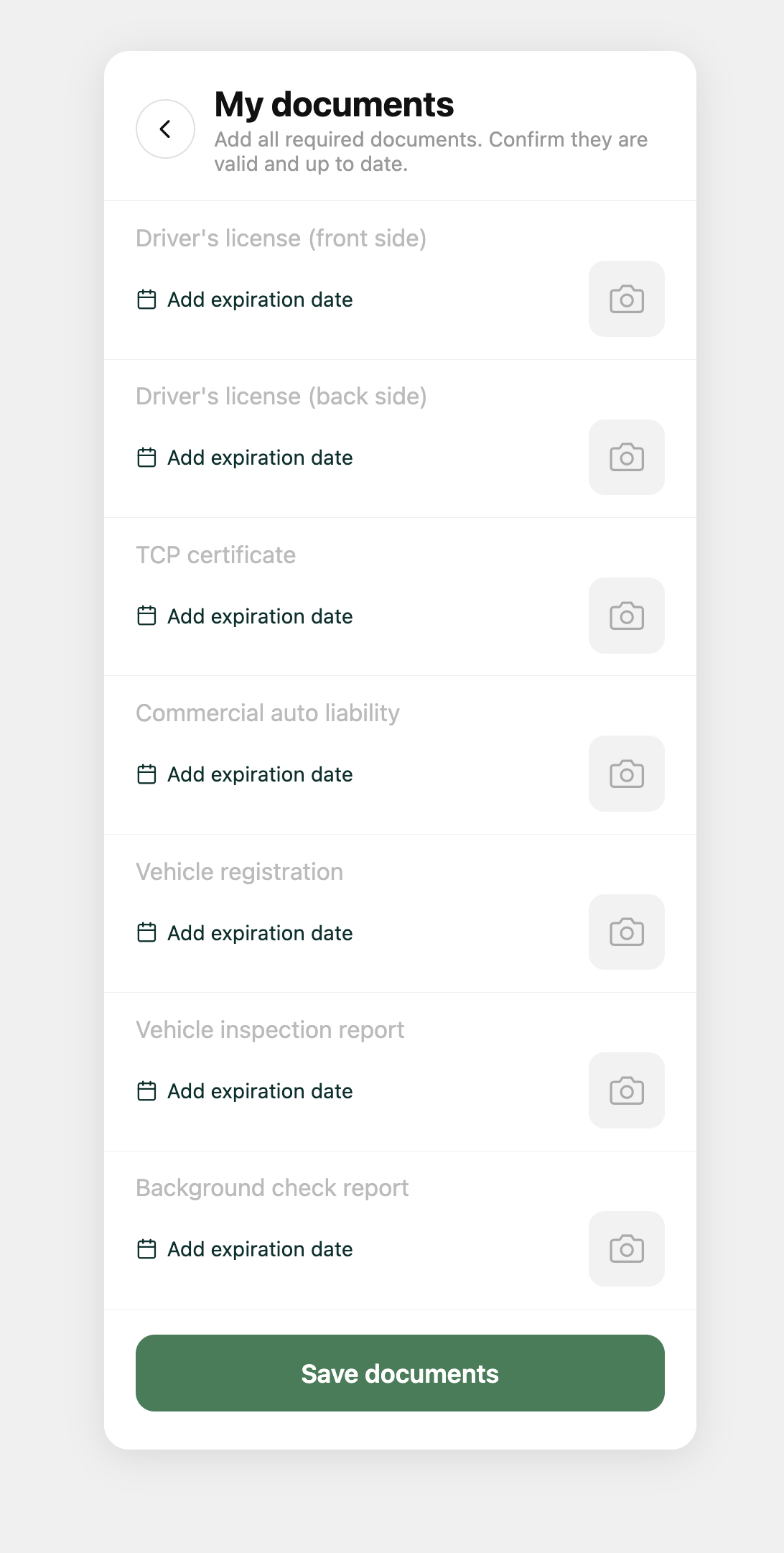
Tap Additional docs. This is where you upload all required documents. Each document requires a photo or file upload and an expiration date. Upload all of the following:
Driver's license — front side and back side
TCP permit or taxi permit — your active permit, in your name
Insurance — your ACORD Certificate of Liability Insurance (TCP drivers) or proof of insurance meeting your local taxi requirements (taxi drivers). Personal auto insurance is not accepted
Vehicle registration — current vehicle registration
Vehicle inspection report — required safety inspection
Background check — order your check from HireRight, then upload a photo of the first page of your report. The $21.40 fee is paid directly to HireRight
Tap Save documents when all files are uploaded.
What happens next
Once you submit your documents, your account status will show as Pending review. Our team will verify each document manually. You will receive an SMS notification once your account is approved and you are cleared to accept trips.
Most applications are reviewed within 5 business days. If any document is missing or needs to be resubmitted, we will reach out to you directly.
For questions, contact us at support@rideomni.com.
Was this helpful?
Still need help? Ask the team